Steps to See Who Shared Your Instagram Post
Open Your Business Profile
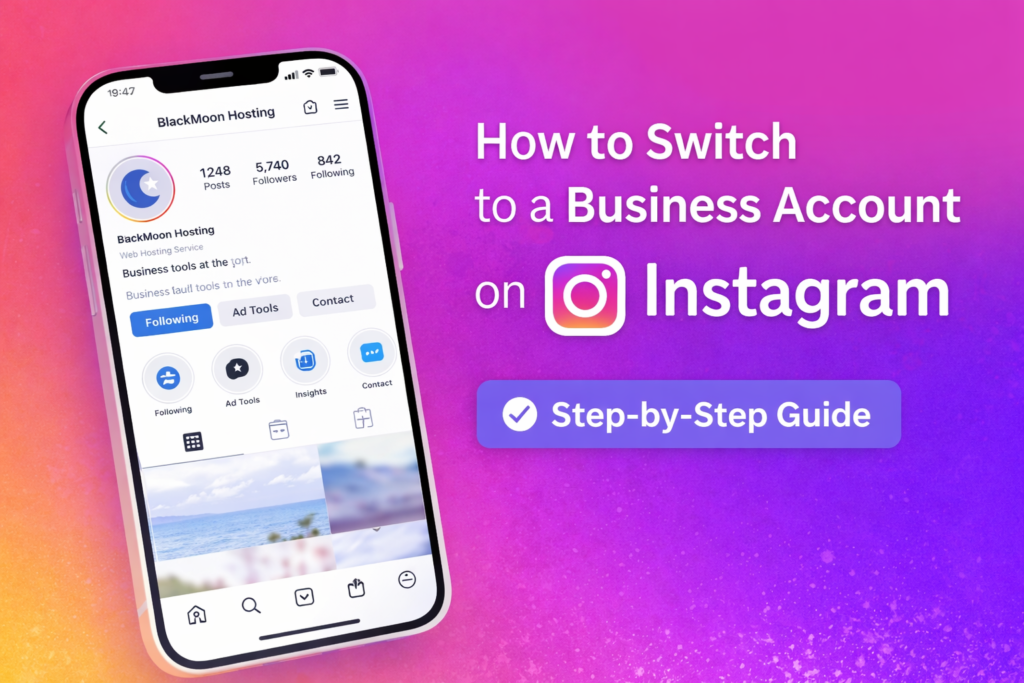
Instagram Insights is only available for business or creator accounts. These insights allow you to view analytics, including how many people have shared your posts.
To access your profile, open the Instagram app and tap your profile picture in the bottom-right corner.
Personal accounts do not have access to insights. Switching to a professional account unlocks additional analytics such as profile views, reach statistics, and post share data. If needed, you can always switch back to a personal account later.
Open the Post
Once your account is set as a business or creator profile, every image post will display a “View Insights” option beneath it.
Open the post you want to analyse to review engagement data and sharing activity.
Videos shorter than 90 seconds are now treated as reels, which means their sharing data is accessed slightly differently.
Select “View Insights”
Tap the View Insights button under the post to see detailed performance metrics.
This section shows statistics such as:
- Total impressions
- Number of accounts reached
- Percentage of viewers who were not following your account
Check “View Story Reshares”
In some cases, you may see an option called “View Story Reshares.”
This allows you to see the usernames of users who shared your post to their Instagram Story within the last 24 hours.
Instagram does not officially document this feature, so its availability can vary. Some users report that it appears whenever someone reshares their post, while others say it disappears after the 24-hour period.
Check the Share Count
Inside the Post Insights section, locate the paper airplane icon. This symbol represents how many times your post has been shared.
The number includes posts shared through:
- Instagram Stories
- Direct messages
You will also see additional engagement metrics here, including:
- Comments (speech bubble icon)
- Likes (heart icon)
- Saves (bookmark icon)
If your post has not been shared, Instagram will display two dashes instead of a number beneath the share icon.
Steps to See Who Shared Your Instagram Reel
Open Your Instagram Profile
To access reel insights, your account must be set to a business or creator profile.
Professional accounts allow you to track how many people have shared your reels and analyse engagement statistics.
Open the Reels Tab
Navigate to the Reels section on your profile, identified by the small clapperboard icon above your photo grid.
Here you can view every reel you have posted, including videos that Instagram automatically converted into reels.
Open the Options Menu
While viewing a reel, tap the three horizontal dots in the bottom-right corner of the screen to open the options menu.
Select “View Story Reshares”
If someone has shared your reel to their public story within the last 24 hours, you may see the option “View Story Reshares.”
This feature is not widely documented and may appear only when someone has shared your reel publicly.
Select “View Insights”
Tap View Insights to open the reel analytics panel.
Here you can view statistics such as reach, total views, and engagement data for your video.
Check the Total Share Count
Scroll down the insights page until you find the “Shares” metric inside the Content Interactions section.
This number represents the total number of times your reel has been shared on Instagram, whether through a story or via direct messages.